Whitelisting
Bugsmirror MASST includes a controlled whitelisting feature that helps product teams manage real-world edge cases without weakening security.
What is whitelisting?
Whitelisting is a feature available with Bugsmirror's cloud-based RASP solution. It is a controlled mechanism that allows whitelisting genuine users to access the app who may be blocked due to differences in their device environment, such as device integrity failures due to device manufacturers' settings or system-level configurations.
When the Bugsmirror Defender detects a threat, it can automatically give warnings or block the app to prevent misuse. However, commercial devices often behave differently from standard consumer devices, especially in Android. These variations trigger security checks when the device fails integrity and an attestation check, even when the user is legit and not attempting malicious activity.
Using the cloud solution, developers can review detailed, organised security data explaining why a device was blocked. From here, the app owners or developers can selectively whitelist specific users or devices for specific threat parameters when they confirm the user is genuine but the device environment is causing the block.
For example, if a user’s device fails a strong device integrity check because of manufacturer-specific system settings, the app owner can whitelist only that integrity check for that user. All other security protections remain active.
How to Whitelist a User/Device in ThreatLens
Whitelisting allows trusted users or devices to continue accessing the application, even if they are flagged with certain threat indicators.
Step-by-Step Process
- Navigate to ThreatLens
Open the ThreatLens module from your dashboard. - Access Latest Threat Activity
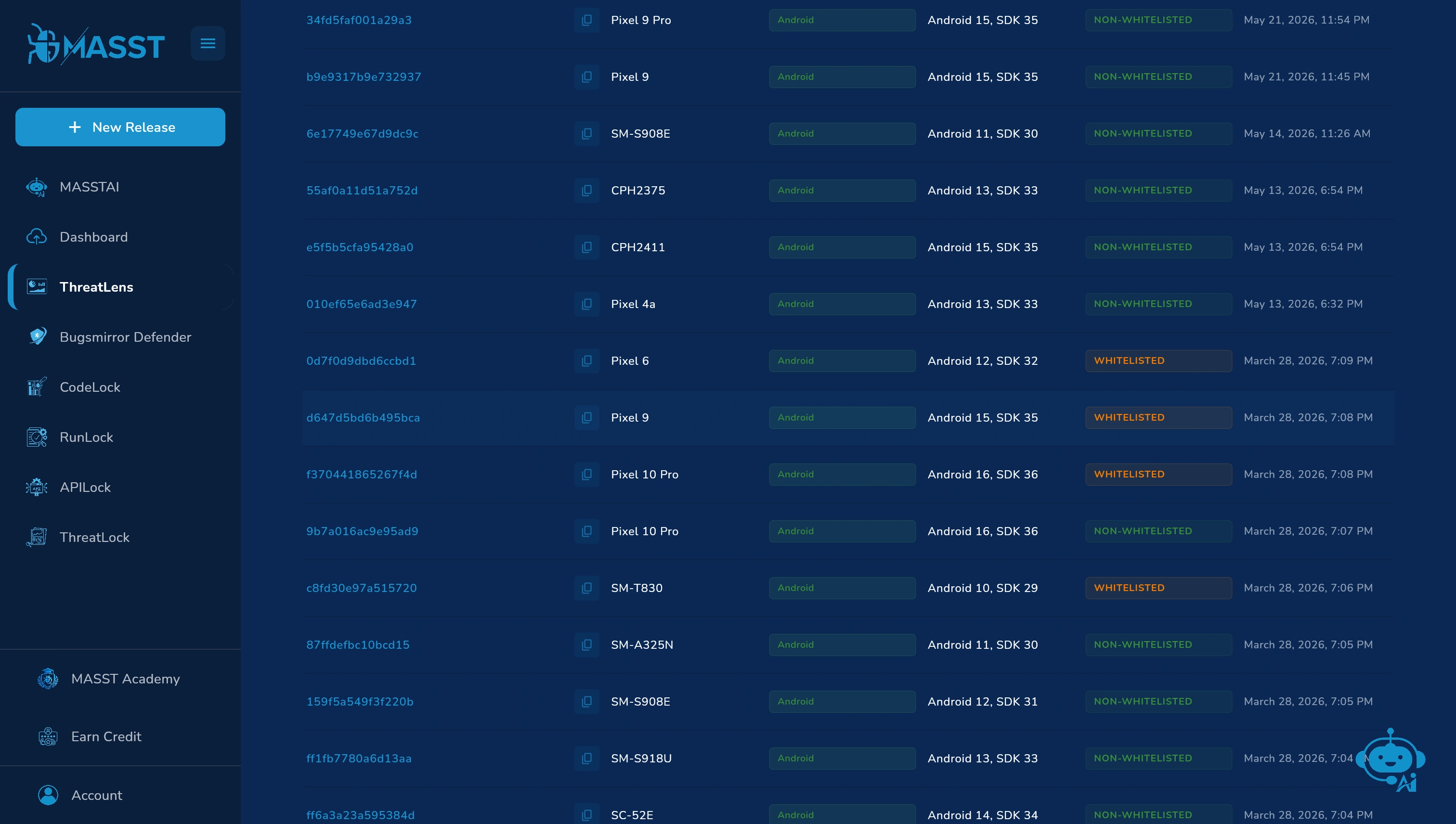
Go to the Latest Threat Activity section to view all detected threats. - Identify the Target Device
- Review the list of devices flagged with at least one threat or malicious indicator.
- Use the search bar to quickly find a specific device by name or device ID.
- On enabling the ‘Show Encrypted Device Ids’ option displays the device ID to end users in an encrypted format. This helps organizations securely identify devices during whitelisting. If a genuine user reports an issue, they can share the encrypted device ID, which can be searched in the ThreatLens portal to locate and whitelist the corresponding device.
- Select the Device
- Click on the device you want to whitelist.
- A Threat History dashboard will appear.


- Review Threat Details
Analyze the device information, including:- Threat ID.
- Threat Group.
- Timespan of detected activity.
- Initiate Whitelisting
Click on the “Whitelist Device” button. - Confirm Action
The system will process the request and display a “Device Whitelisted Successfully” notification. - Verification
- The selected device is now whitelisted.
- Updated status is reflected in the Latest Threat Activity dashboard.
- You can also track the count of whitelisted vs non-whitelisted devices.

Technical Note
Whitelisting overrides automated threat enforcement for specific devices, so it should only be applied to verified and trusted users after proper validation.