How To Make A Config
What does a config file contain?
The `config.bm` file is a configuration file required for integrating the Bugsmirror Defender SDK into your mobile application. You can download this file from the MASST portal. It contains unique settings for your application that are necessary to bind and initialize the Defender framework correctly.
Initially, when you integrate the Bugsmirror defender SDK into your application, a config file is required. If you want to make changes in the features or any settings again then you can create a new config and if you do not want to make changes you can use the same old config every time you make a release. The config files you have made are available in the History tab.
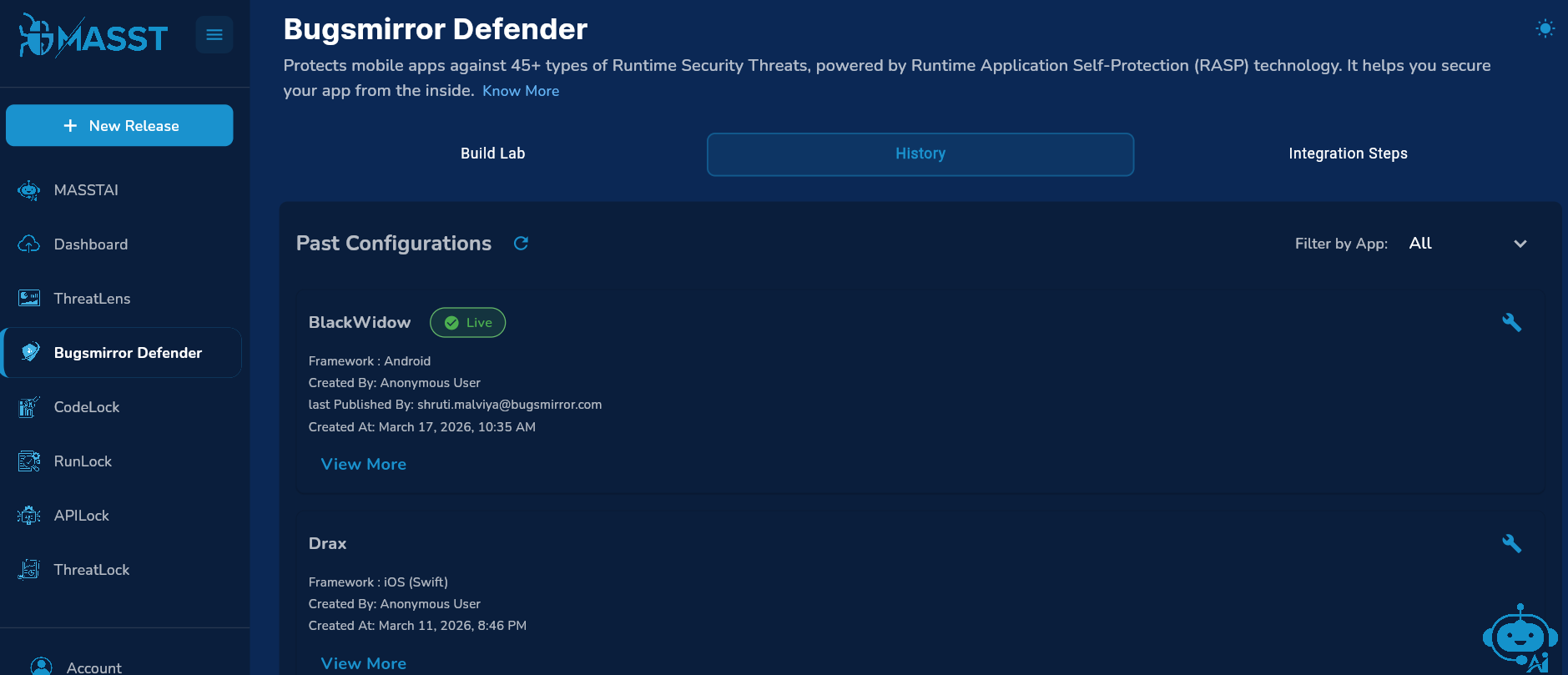
Access Build Lab
- Open the Bugsmirror Defender Tab.
- Navigate to the Build Lab.
- Select your Application.
- Select the Framework.
- Choose the Release Tag.
Learn how to add applications: Go to Guide
Step 1: Select Mitigation
Mitigation refers to predefined actions used to reduce or neutralize threats.
- Choose one of the following:
- App Shutdown.
- Dialog and App Shutdown.
- You can also add a custom dialog message to be displayed when a threat is detected.
Step 2: Build Version Details
For Android Device:
Provide the following SDK configurations:
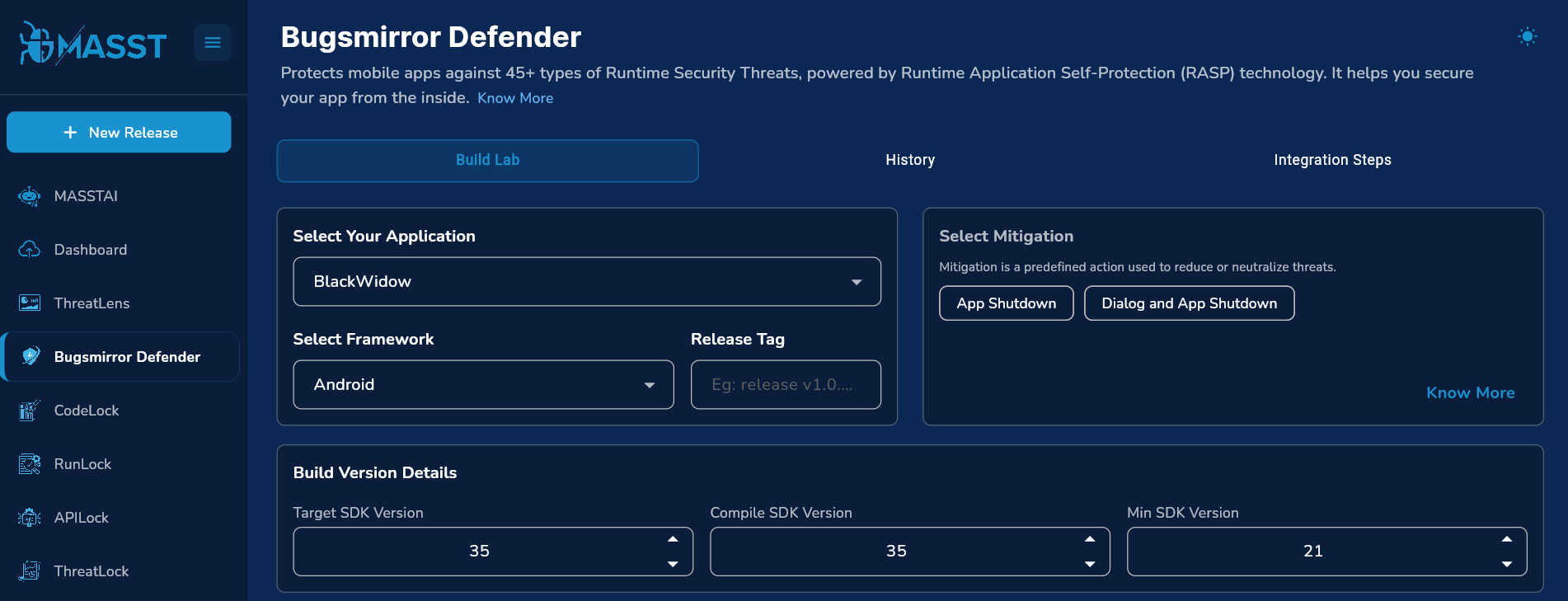
- Target SDK Version.
- Compile SDK Version.
- Minimum SDK Version.
For iOS Device: Build version details not required.
Go to the next page.
Step 3: MASST Feature Add-ons
Enable additional MASST features as required:
- ThreatLens & OTA
- Bugsmirror Shield
- Option to control:
- Dialog visibility for OTA updates.
- Dialog visibility for Whitelisting.
Step 4: Bugsmirror Shield Configuration
When Bugsmirror Shield is enabled, a configuration dashboard appears with the following options:
Shielded Packages
- Specify package names that are critical and should be encrypted.
Excluded Packages
- Specify package names to exclude from encryption.
- Typically includes less critical files to:
- Reduce build time.
- Optimize application size.
Step 5: Guidelines Compliance Selection
Enable compliance guidelines based on your business and regulatory requirements:
- SEBI CSCRF
- RBI
- NPCI
Go to the next page.
Step 6: Customize Configuration
- Enable or disable security features based on your business needs.
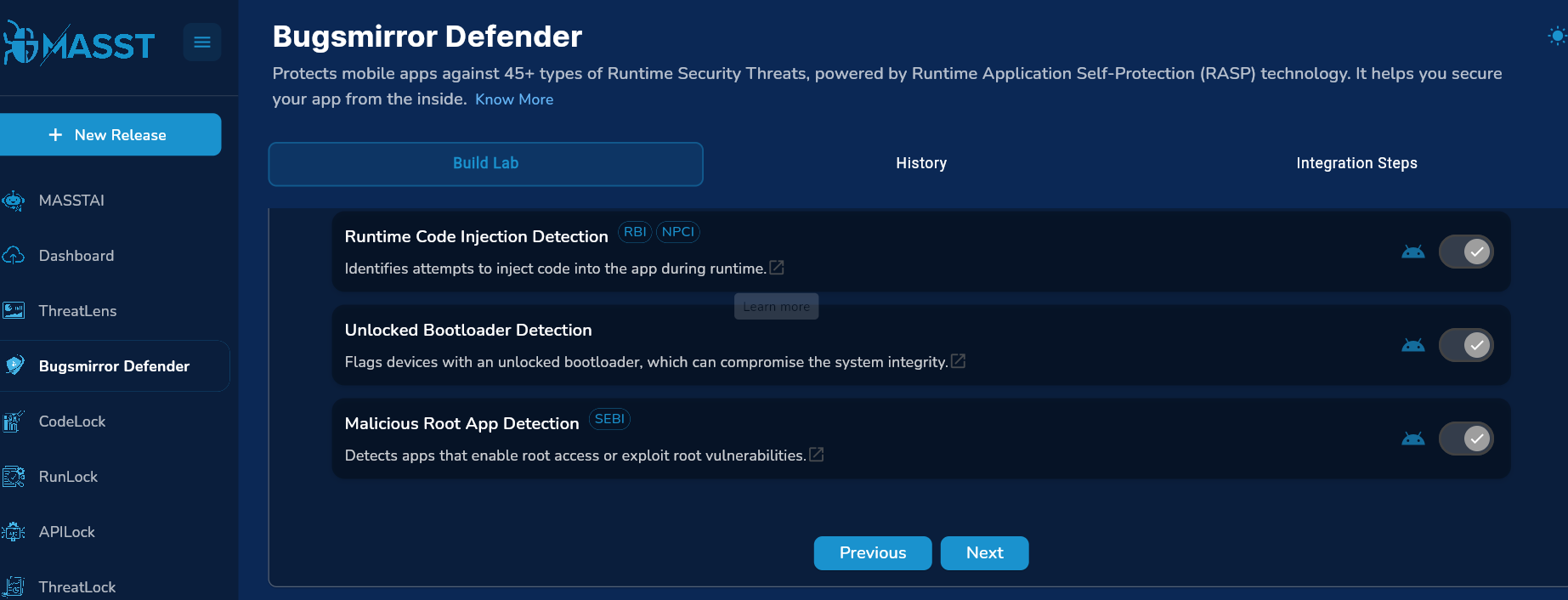
- After enabling desired features, go to the next page.
- For guidance, refer to the Defender Runtime Security Check-wise Recommendation file to understand:
- Which features should be enabled.
- Which features can be disabled based on risk score.
- After choosing desired security features, click submit and confirm.
Refer: Bugsmirror Defender Runtime Security Check-wise Recommendations
Go to Guide
Step 7: Confirm Configuration
- Review all selected configurations.
- Confirm to proceed with the build setup.