How To Add Applications
After logging in to the MASST portal, the first step is to add applications to the portal to begin configuration and release processes.
How to add applications in the MASST portal?
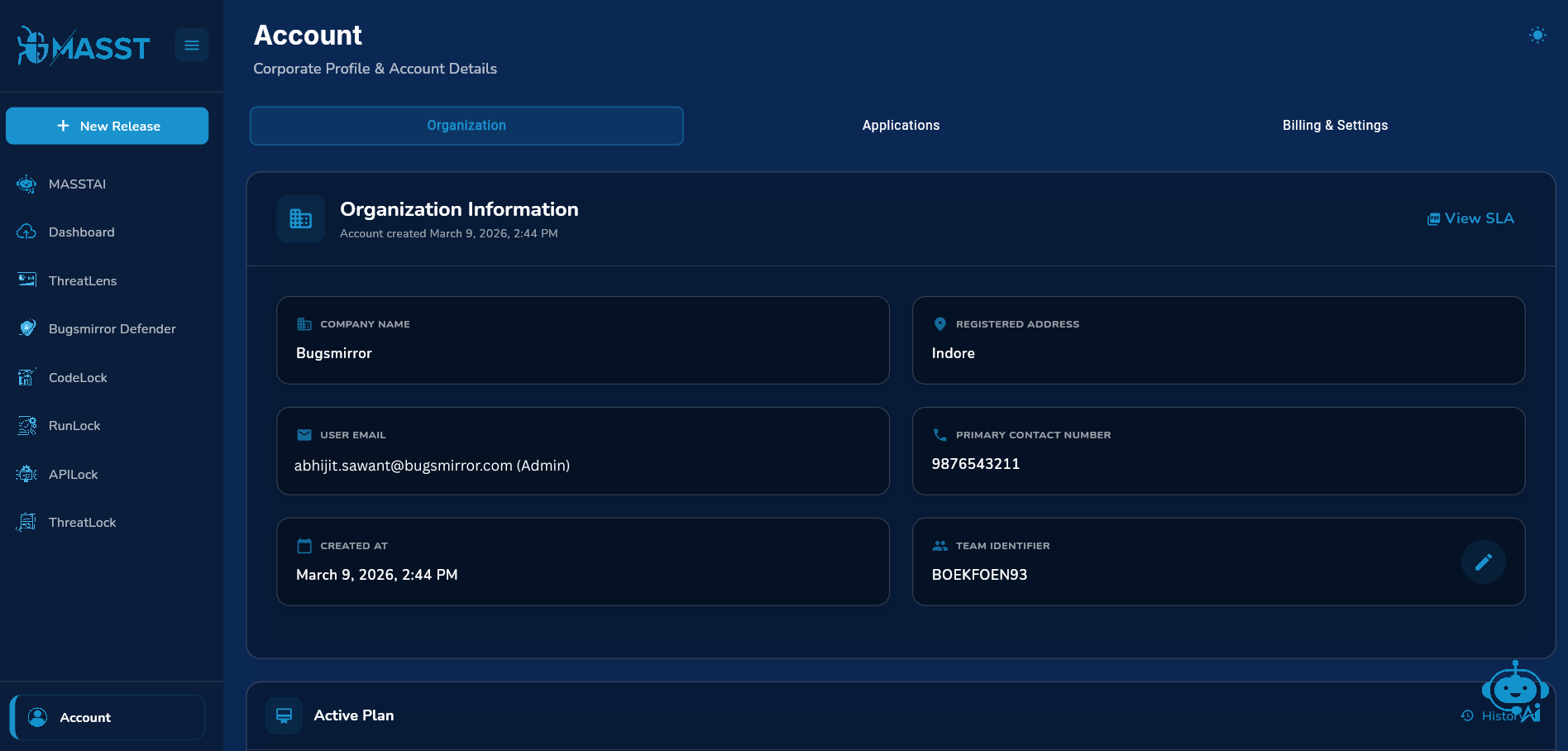
- Navigate to ‘Account’ in the bottom left.

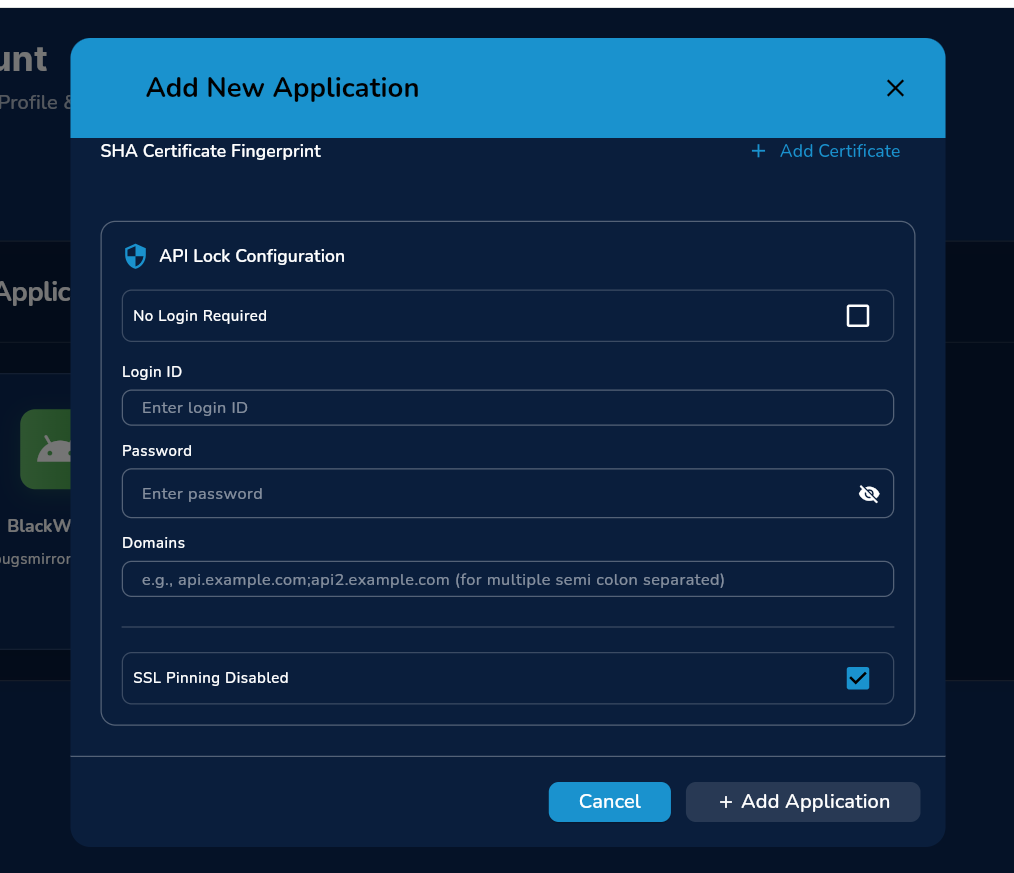
- Go to the application tab, and click on ‘Add Application’.

The following details are required when adding the application:
- Application name (e.g., your app name).
- Operating system: Android & iOS.
For Android Application:
Following details are required:
-
Package name: (this is the unique identifier of the application, you can find it from your app’s project built.gradle file). E.g, com.example.app.
-
SHA Certificate Fingerprint.

How to retrieve SHA Certificate Fingerprint (Android):
What is a SHA certificate fingerprint?
A SHA (Secure Hash Algorithm) fingerprint, often referred to as a SHA-1 or SHA-256 certificate fingerprint, is a unique cryptographic signature used to identify and verify the authenticity of a digital certificate or a file. It acts as a compact, hexadecimal "fingerprint" (a 40-character string for SHA-1) of the longer, complex public key certificate. It is primarily used in Android development and network security to ensure that an application or website is authentic and has not been tampered with. Because different certificates can share similar data, the SHA fingerprint uniquely identifies a specific certificate, allowing developers to distinguish between debug and production versions.
How to retrieve SHA Certificate Fingerprint (Android)?
Here’s a clear, step-by-step guide to get the SHA certificate fingerprint (SHA-1 / SHA-256) for an Android app.
Method 1: Using Android Studio (Easiest)
Steps:
- Open your project in Android Studio.
- Go to the right-side panel → Click on Gradle.
- Navigate to:
Your Project > Tasks > android > signingReport
- Double-click signingReport.
- Wait for the build to complete.
- In the Run / Build Output, you’ll see:
Variant: debug
Config: debug
Store: ...
SHA1: XX:XX:XX:XX...
SHA-256: XX:XX:XX...
Output:
- SHA1 fingerprint.
- SHA-256 fingerprint.
- Available for both:
- debug.
- release (if configured).
Method 2: Using Keytool (Command Line)
🔹 For Debug Keystore
Step 1: Open terminal / command prompt.
Step 2: Run this command:
Windows:
keytool -list -v -alias androiddebugkey -keystore %USERPROFILE%\.android\debug.keystore -storepass android -keypass android
Mac/Linux:
keytool -list -v -alias androiddebugkey -keystore ~/.android/debug.keystore -storepass android -keypass android
Output:
Look for:
SHA1: XX:XX:XX...
SHA256: XX:XX:XX...
🔹 For Release Keystore
Step 1: Use your release keystore file.
Step 2: Run:
keytool -list -v -keystore your_keystore.jks -alias your_alias_name
Step 3:
- Enter keystore password when prompted.
Output:
SHA1: XX:XX:XX...
SHA256: XX:XX:XX...
Method 3: Using Gradle Command (CLI)
Run this inside your project folder:
./gradlew signingReport
Windows:
gradlew signingReport
Method 4: If the app is published (From Google Play Console (Recommended)
Steps:
- Open Google Play Console.
- Select your app.
- In the left menu, go to:
Setup → App Integrity
- Scroll to App signing key certificate.
- You will see:
- SHA-1
- SHA-256
- MD5
⚠️ Important Notes
- Debug vs Release SHA
- Debug SHA → used for testing (Firebase, APIs).
- Release SHA → used for production apps.
- Common Use Cases
- Firebase configuration.
- Google Sign-In setup.
- Maps API authentication.
- App integrity verification.
💡 Pro Tips
- Always keep your release keystore secure.
- SHA changes if the keystore changes.
- Use SHA-256 where possible (more secure than SHA-1).
For iOS applications:
For adding iOS applications, following information required:
- Bundle Identifier (e.g, com.example.MyApp).
How to locate a bundle identifier:
-
You can locate the bundle identifier in your project in Xcode.
Select the Project at the top of the Project Navigator on the left.
Select your app's name under Targets.
Go to the General tab; the ID is in the Bundle Identifier field.
Alternatively, check the Info.plist file for the key CFBundleIdentifier.
-
Via the Apple Developer Portal:
- Log into your Apple Developer Account.
- Navigate to Certificates, Identifiers & Profiles.
- Select Identifiers in the sidebar to see a list of all your registered App IDs and their corresponding Bundle IDs.
- Team identifier (your team ID from Apple Development Account)
What is a team identifier and how to add it?
A Team Identifier (Team ID) is a unique, immutable 10-character alphanumeric string assigned by Apple to a specific developer or organization. It is used to identify team members, sign apps, and define permissions. It is frequently required for iOS Developer tasks, MDM configuration, and app security management.
How to Locate Your Team ID?
-
Apple Developer Portal: Log in and check the Membership Details section to find the 10-character Team ID.
-
App Store Connect: Log in, go to "Users and Access," click on your name, and your Team ID will be listed there.
-
Xcode: Open your project, go to the "Signing & Capabilities" tab, and hover over the "Team" dropdown to see the ID in the tooltip.
-
For APILock configuration:

When configuring APILock, choose one of the following options:
-
No Login Required: Select this if a ‘create your account’ option is possible within the application.
-
Provide Login Credentials: Provide the following details so the application can be logged into and run to capture APIs:
- Login ID.
- Password.
- Domains.
-
Always disable SSL pinning during APILock testing.
-
(SSL pinning must be disabled during APILock testing because it blocks from intercepting API traffic. If it stays enabled, testers can’t view or modify requests, so real security issues may go unnoticed).
Final Steps:
- After filling all the details, click on ‘+Add Applications’.
- Your application is added, and you can similarly add multiple applications according to your package plan.
After logging in to the MASST portal, the first step is to add applications to the portal to begin configuration and release processes.
-
Add Team Identifier
Configure your team identifier to enable proper project and access management. -
Add Applications
Register your application(s) in the portal to begin configuration and release processes.
What is a team identifier and how to add it?
A Team Identifier (Team ID) is a unique, immutable 10-character alphanumeric string assigned by Apple to a specific developer or organization. It is used to identify team members, sign apps, and define permissions. It is frequently required for Apple Developer tasks, MDM configuration, and app security management.
To add team identifier:
- Go to Account.
- Click on the organisation tab.
- Add team identifier.
How to add applications?
- Navigate to Account in the bottom left.
- Go to the application tab, fill details and click on add applications.
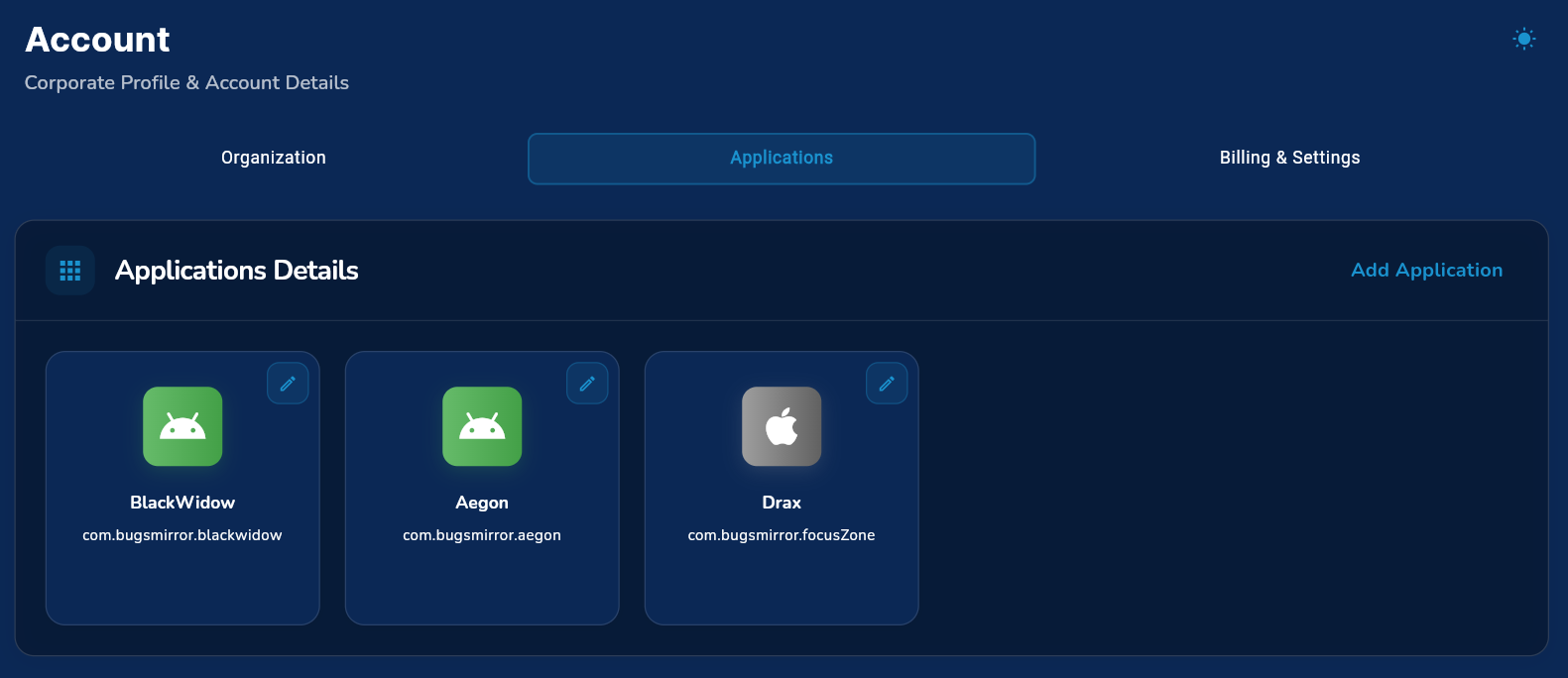
- Following details you will need while adding the application.
- Application name.
- Operating system: Android & iOS
- Package name.
- SHA Certificate Fingerprint.
- For APILock configuration
- Login ID
- Password
- Domain
- Always disable SSL pinning on APLock testing